
LetsGo2U Download Guide for Mobile and Desktop Access
LetsGo2U App and APK Availability
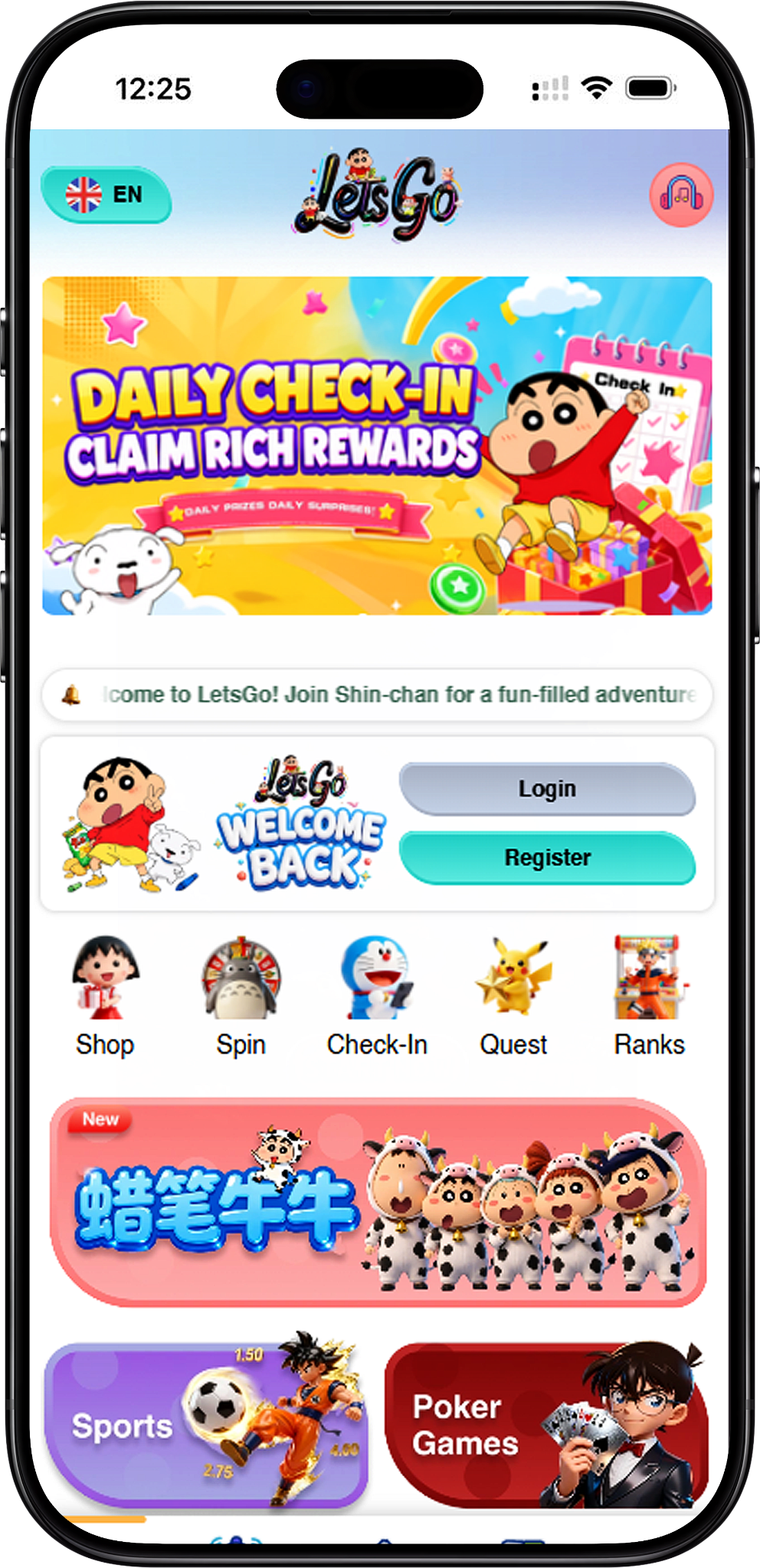
App Download Is Coming Soon
The dedicated mobile App is currently listed as coming soon. Until an official application becomes available, users can create a Home Screen shortcut from a compatible browser instead of looking for an unofficial installation file.
APK Availability
The dedicated APK is also not currently provided in the supplied materials. Android users can use the Home Screen method below for convenient browser-based access while waiting for the official release. Avoid installing APK files from unverified third-party sources.
Access Without Installing an App
A Home Screen or desktop shortcut provides direct access to the website without requiring a dedicated application package. Existing users can also use Login (/en/login, internal link), while new users can visit Register (/en/register, internal link) before setting up their preferred shortcut.
LetsGo2U Android Download Steps
While the dedicated Android App is coming soon, Android users can add the website to their Home Screen through Chrome. This creates an icon that can be used to open the website quickly.
Step 1: Open Chrome
Open Google Chrome on your Android phone or tablet. You can begin from Download (/en/download, internal link) when reviewing these setup instructions.
Step 2: Visit the Website
Enter the supplied LetsGo2U website address in Chrome and wait for the page to load. Confirm that you have reached the intended website before creating the shortcut or entering account information.
Step 3: Open the Chrome Menu
Tap the three-dot menu (⋮) in the top-right corner of Chrome to display the available browser options.
Step 4: Select Add to Home Screen
Choose “Add to Home screen” from the Chrome menu. If Chrome displays “Install app” instead, the available wording may depend on the browser and website configuration.
Step 5: Name the Shortcut
Enter a recognisable shortcut name, such as LetsGo2U, and confirm the action. The website icon should then appear on your Android Home Screen for quicker access.
Step 6: Open and Check the Shortcut
Tap the new Home Screen icon and confirm that it opens the expected website. From there, existing users can proceed to Login (/en/login, internal link) when account access is required.
What If Chrome Shows Install App?
Chrome may sometimes display “Install app” instead of “Add to Home screen.” Based on the supplied instructions, users can refresh the page if the expected shortcut option is not shown. The supplied guidance also suggests temporarily switching to Airplane Mode and then restoring the internet connection if necessary.
LetsGo2U iOS Download Steps
iPhone and iPad users can create a Home Screen shortcut through Safari while the dedicated iOS App is coming soon. The supplied instructions specify Safari for this method.
Step 1: Open Safari
Open Safari on your iPhone or iPad. Use Safari rather than another browser for the supplied Add to Home Screen procedure.
Step 2: Visit the Website
Navigate to the supplied LetsGo2U website in Safari. Check the destination before continuing with the shortcut setup.
Step 3: Tap the Share Button
Tap Safari’s Share button, represented by a square with an upward arrow, to display the available sharing and browser actions.
Step 4: Select Add to Home Screen
Find and select “Add to Home Screen” from the available Safari options. This prepares a website shortcut for your iPhone or iPad Home Screen.
Step 5: Customize the Name
Review or change the shortcut name, such as LetsGo2U, and tap Add. The new icon should then appear on the Home Screen.
Step 6: Use the Home Screen Icon
Tap the newly created icon whenever you want to open the website. New users who still need an account can proceed to Register (/en/register, internal link) after checking that the correct destination has opened.
LetsGo2U Desktop Download Steps for Windows
Windows users have several ways to create convenient desktop access without installing a dedicated App. The supplied options include drag and drop, a Chrome shortcut, Microsoft Edge app installation, and a manual Windows shortcut.
Method 1: Create a Shortcut by Drag and Drop
Step 1: Open the Website
Open the website in Chrome, Edge, or Firefox and allow the page to load fully.
Step 2: Drag the Address Bar Icon
Drag the site or lock icon from the browser address bar onto the Windows desktop.
Step 3: Open the Shortcut
A desktop shortcut will be created. Double-click it to open the website through your default browser.
Method 2: Create a Chrome Shortcut
Step 1: Open the Website in Chrome
Launch Chrome and navigate to the LetsGo2U website.
Step 2: Open Chrome’s Menu
Open the three-dot menu and locate Chrome’s shortcut creation option. Depending on the Chrome version, the exact menu location or wording may differ from the supplied “More Tools” path.
Step 3: Create the Shortcut
Choose the shortcut creation option, name it LetsGo2U, and select an available window-opening option if preferred. Confirm to create the shortcut.
Method 3: Use Microsoft Edge
Step 1: Open the Website in Edge
Launch Microsoft Edge and visit the website you want to use for direct access.
Step 2: Open the Apps Option
Open the Edge menu and locate the Apps or site installation option available in your current browser version.
Step 3: Install the Site as an App
Select the option to install the site as an app and follow the displayed confirmation prompts. Where supported, the resulting web app can be pinned to Windows locations such as the Start menu or taskbar.
Method 4: Create a Manual Windows Shortcut
Step 1: Create a New Shortcut
Right-click an empty area of the Windows desktop and select New, followed by Shortcut.
Step 2: Enter the Website Address
Paste the website address into the shortcut location field and continue to the naming screen.
Step 3: Name and Save It
Enter LetsGo2U or another recognisable name and select Finish. The shortcut can then be used to open the website.
LetsGo2U Desktop Download Steps for macOS
macOS users can create convenient website access through Safari or Chrome. A custom shortcut icon can also be applied where supported.
Method 1: Create a Safari Shortcut
Step 1: Open Safari
Launch Safari on your Mac and navigate to the website.
Step 2: Drag the Website Address
Drag the URL or available site icon from Safari’s address bar onto the desktop.
Step 3: Open the Web Location File
This method creates a .webloc file. Double-click the file whenever you want to open the website through the associated browser.
Method 2: Create a Chrome Shortcut
Step 1: Open Chrome
Open Chrome on macOS and navigate to the website.
Step 2: Find the Shortcut Option
Open Chrome’s menu and locate the available shortcut creation feature. Browser menus can change between Chrome versions, so follow the equivalent shortcut option shown in your current version.
Step 3: Name the Shortcut
Enter a recognisable name and confirm the shortcut creation. Check the resulting icon to make sure it opens the expected website.
Optional: Customize the Shortcut Icon
On macOS, users can select the shortcut and open Get Info to review its icon settings. Where supported, a custom image can be copied and pasted onto the icon preview to make the shortcut easier to recognise.
Choosing the Right Access Method
Android and iOS
Android users can use Chrome’s Home Screen option, while iPhone and iPad users can follow the supplied Safari method. These shortcuts provide convenient browser access while the dedicated mobile App remains coming soon.
Windows and macOS
Desktop users can create a website shortcut using the browser or operating-system methods described above. Choose the method that works with your current browser and device rather than installing an unverified program.
Access Games and Account Features
After opening the website, users can navigate to Games (/en/games, internal link) to review available game categories or Promotion (/en/promotion, internal link) for promotional information. Account-related guidance is available through Deposit (/en/deposit, internal link) and Withdraw (/en/withdraw, internal link) where applicable.
Verify the Website Address
Before signing in or creating a shortcut, confirm that you are using the intended website. The naked URL supplied for direct shortcut setup is https://letsgo2u.com/.
Frequently Asked Questions About LetsGo2U Download
Is the LetsGo2U App available now?
The supplied information states that the dedicated App is coming soon. Users can currently create a Home Screen or desktop shortcut using the methods described on this page.
Is there an APK available for Android?
An official APK is not provided in the supplied materials and the App is described as coming soon. Android users can add the website to their Home Screen through Chrome instead.
Can I add LetsGo2U to an Android Home Screen?
Yes. Open the website in Chrome, access the three-dot menu, choose Add to Home screen where available, name the shortcut, and confirm.
Can I add LetsGo2U to an iPhone or iPad Home Screen?
Yes. The supplied method uses Safari. Open the website, tap Share, select Add to Home Screen, review the shortcut name, and tap Add.
Can I create a shortcut on Windows?
Yes. The supplied instructions include drag-and-drop, Chrome, Microsoft Edge, and manual Windows shortcut methods. The exact browser menu wording may vary by browser version.
Can I create a shortcut on macOS?
Yes. The supplied instructions include Safari and Chrome methods. Safari can create a .webloc file by dragging the website address or available site icon onto the desktop.
Is a Home Screen shortcut the same as a native App?
No. A website shortcut primarily provides quicker browser-based access, while a native App is separately installed software. The dedicated App is described in the supplied information as coming soon.
Where can I sign in after creating a shortcut?
Existing users can select Login (/en/login, internal link) to enter their mobile number or username and password. Users without an account can first visit Register (/en/register, internal link).
Add LetsGo2U to Your Device
Follow the Android, iOS, Windows, or macOS steps to create convenient website access while the dedicated App remains coming soon.