
LetsGo2U Register Guide for New Account Sign Up
How to Register a LetsGo2U Account
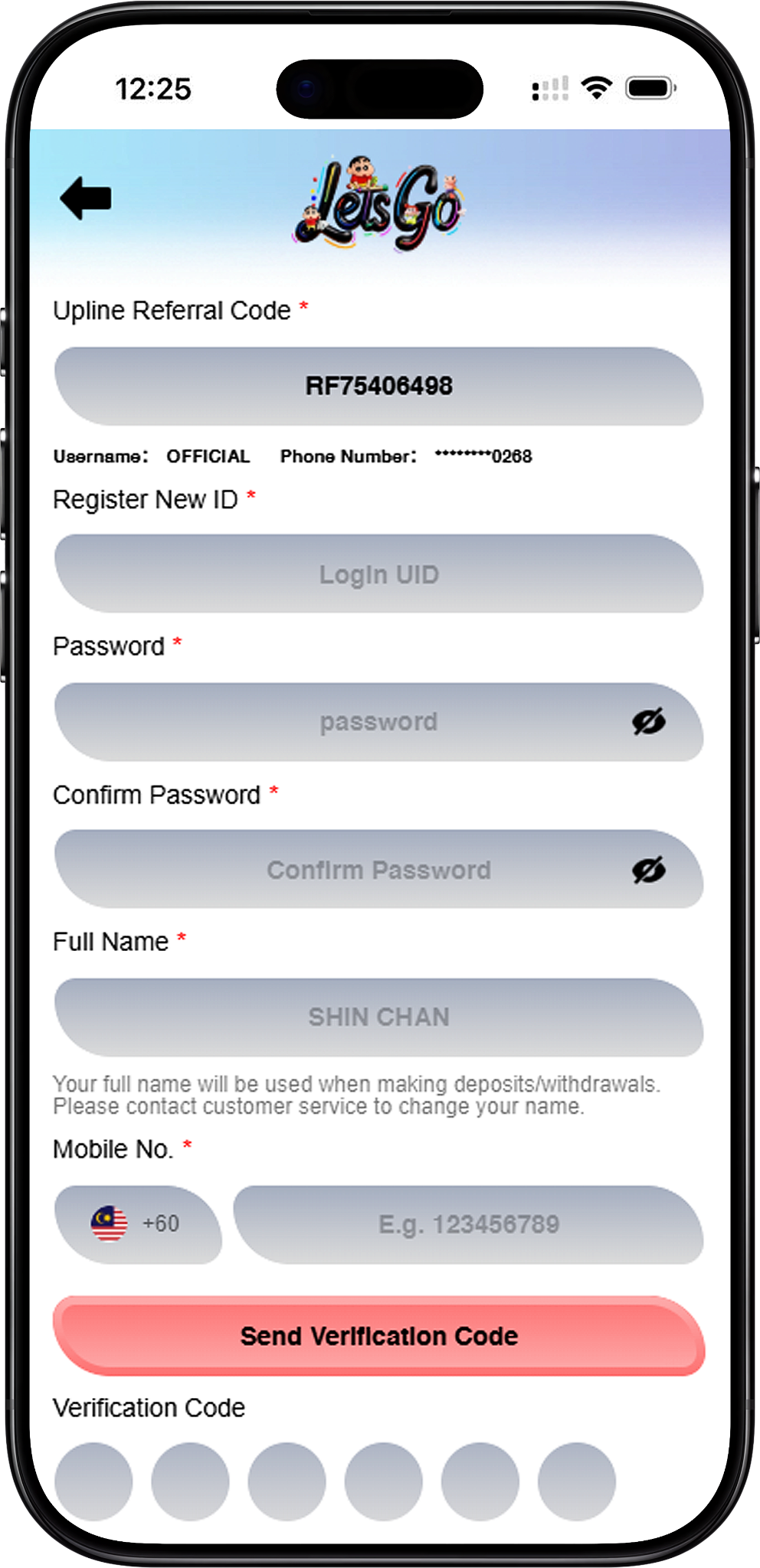
The registration form shown in the supplied materials requires an Upline Referral Code, a new Login UID, password confirmation, full name, Malaysian mobile number, and a verification code. Follow the steps below and review your information before submitting the form.
Step 1: Open the Registration Page
Select Register (/en/register, internal link) to open the account registration form. If you are starting elsewhere on the platform, you can return to Home (/en, internal link) before accessing the registration page.
Step 2: Check the Upline Referral Code
Review the Upline Referral Code displayed at the top of the form. The supplied registration example shows this field already populated, so check the displayed code before continuing rather than changing information without confirmation.
Step 3: Create Your Register New ID
Enter your preferred account identifier in the Register New ID field. The form identifies this entry as the Login UID, which is used to identify your account when accessing the platform.
Step 4: Create and Confirm Your Password
Enter a password in the Password field, then enter the same password again under Confirm Password. Use the visibility controls beside the password fields when needed to check your entry before proceeding.
Step 5: Enter Your Full Name
Provide your full name in the required field. According to the supplied registration form, the full name is used when making deposits and withdrawals, and users are directed to customer service if a name change is required.
Step 6: Enter Your Mobile Number
Enter your mobile number beside the displayed Malaysia +60 country code. Check the number carefully because it is used for the verification stage of registration.
Step 7: Request the Verification Code
Select Send Verification Code (/en/register, registration action link) after entering the required mobile number. Wait for the verification code associated with the number you provided.
Step 8: Enter the Verification Code
Enter the received verification code into the six verification fields shown on the registration form. Make sure the complete code has been entered before submitting your registration.
Step 9: Review and Submit Your Registration
Check your Login UID, password confirmation, full name, mobile number, and verification code, then select Register (/en/register, registration action link). The form states that clicking the Register button confirms that the registrant is above 18 years old.
Step 10: Continue to Login
After you have an account, use Login (/en/login, internal link) to access the sign-in page. Users interested in supported device access can also review Download (/en/download, internal link).
LetsGo2U Upline Referral Code and QR Code

What Is the Upline Referral Code?
The Upline Referral Code is displayed as a required field at the beginning of the supplied registration form. Check that the appropriate referral information is shown before completing the remaining account details.
How Can a QR Code Be Used for Registration?
A registration QR Code can provide a convenient route to the relevant sign-up destination when supplied by the platform or an authorised referral source. Scan the QR Code with a compatible mobile device, verify the destination before entering personal information, and then follow the registration form shown on screen.
Check the Registration Destination
Before submitting account or mobile information, confirm that you are using the intended LetsGo2U registration destination. The supplied QR Code should be treated as an access method rather than a replacement for reviewing the registration information displayed on the page.
Information Required for Registration
Register New ID and Password
The registration form requires a Register New ID, which is presented as the Login UID, together with a password and matching password confirmation. Review these entries carefully before proceeding to verification.
Full Name
The full-name field is mandatory. The supplied form specifically states that the name will be used when making deposits and withdrawals, so enter the requested information accurately.
Malaysian Mobile Number
The supplied registration interface displays the Malaysian flag and +60 country code beside the Mobile No. field. Enter the requested mobile number before selecting Send Verification Code.
Mobile Verification During Sign Up
Requesting a Verification Code
Mobile verification takes place after the required phone number is entered. Select Send Verification Code and use the code received through the registration process to complete the six verification fields.
If the Verification Code Does Not Arrive
First check that the mobile number and country code were entered correctly. Avoid repeatedly submitting the registration form with incomplete verification details. If the issue continues, use the support options provided by the platform rather than sharing your password or verification code with an unverified third party.
Important Registration Checks
Verify Your Details Before Registering
Check the Upline Referral Code, Login UID, full name, mobile number, and verification code before selecting Register. Password and Confirm Password should also match. These checks can reduce avoidable errors during account creation.
Review Account Access Options
Once registration is complete, use Login (/en/login, internal link) for account access. You can explore Games (/en/games, internal link) after signing in where access is available, or review Deposit (/en/deposit, internal link) and Withdraw (/en/withdraw, internal link) for the relevant account transaction guidance.
Use the Correct Website
When accessing registration directly, verify the site address before entering account information. The naked URL for the website is https://letsgo2u.my/.
Frequently Asked Questions About LetsGo2U Register
What information is required to register?
The supplied form shows required fields for an Upline Referral Code, Register New ID, password, password confirmation, full name, mobile number, and verification code.
What is Register New ID?
Register New ID is the account identifier field shown with the Login UID placeholder on the registration form. Choose the requested ID and review it before submitting your registration.
Is an Upline Referral Code required?
Yes. The supplied registration interface marks Upline Referral Code with an asterisk, indicating that it is a required field in the shown registration flow.
Does registration require mobile verification?
Yes. The supplied form includes a Mobile No. field, a Send Verification Code button, and six verification-code entry boxes as part of the sign-up process.
Which country code is shown on the registration form?
The supplied registration form displays Malaysia with the +60 country code beside the mobile-number field.
Why must I provide my full name?
The registration interface states that the full name will be used when making deposits and withdrawals. It also instructs users to contact customer service if they need to change their name.
Is there an age requirement for registration?
The supplied form states that by clicking the Register button, the user confirms that they are above 18 years old. Users should also comply with applicable local eligibility requirements.
What if I already have an account?
There is no need to create another account through this guide. Select Login Now (/en/login, internal link) from the registration screen to proceed to existing-account access.
Create Your LetsGo2U Account
Complete the registration form with the required account and mobile verification details, review each entry carefully, and submit the form when you are ready.